> For the complete documentation index, see [llms.txt](https://help.docexport.com/llms.txt). Markdown versions of documentation pages are available by appending `.md` to page URLs; this page is available as [Markdown](https://help.docexport.com/template/advanced-filtering.md).
# Advanced Filtering
Advanced filtering is necessary if you want to filter for some special columns or subitems and include the conditions in your templates.
{% hint style="info" %}
This feature is available in the following plans:\
~~Free~~ | Standard | Professional | Enterprise\
[View pricing and plan details →](https://www.docexport.com/pricing/)
{% endhint %}
## Concept of advanced filtering
Some filters can't be automatically retrieved from your monday board (e.g. subitems). In such cases, we need to load all items and filter on our side by including the filter condition in the docx template.
**Note:** That's a relatively rare needed feature for advanced use cases. Please check out these help center articles before:
* [Apply board filters](/template/board-level-filter.md)
* [Dynamic Tables](/features/dynamic-tables.md)
{% embed url="" %}
### **Step 1: Retrieve the filter string**
1. Open the DocExport view in your monday board
2. Click on "More"
3. Select 'Subscription' and apply your preferred filters in the board
4. Click on the button 'Copy filter condition' to retrieve the specific, coded filter string:
The copied filter string could look like this:
{% code overflow="wrap" %}
```
W3tjb2x1bW5faWQ6Im5hbWUiLGNvbXBhcmVfdmFsdWU6WyJNaWxlc3RvbmUiXSxjb21wYXJlX2F0dHJpYnV0ZToiIixvcGVyYXRvcjpjb250YWluc190ZXh0fSx7Y29sdW1uX2lkOiJzdGF0dXMiLGNvbXBhcmVfdmFsdWU6WzBdLGNvbXBhcmVfYXR0cmlidXRlOiIiLG9wZXJhdG9yOmFueV9vZn1d
```
{% endcode %}
**Background information for advanced users:**\
This code is a Base64 encoded filter string from monday. If you decode this string, the result would be
{% code overflow="wrap" %}
```
[{column_id:"name",compare_value:["Milestone"],compare_attribute:"",operator:contains_text},{column_id:"status",compare_value:[0],compare_attribute:"",operator:any_of}]
```
{% endcode %}
### **Step 2: Include filter in a template**
You can now use this filter in your templates.
#### Advanced Filter for Item Level
If you want to use the filter for item level, the filter needs to be included in the **`{{TableStart:Groups}}`** and **`{{TableEnd:Groups}}`** placeholders within brackets:
`{{TableStart:Groups`**`(Filter string)`**`}}`
`{{TableEnd:Groups`**`(Filter string)`**`}}`
In your template, it would look something like this (highlighted in red):
#### Advanced Filter for SubItem Level
{% embed url="" %}
You can also add the filter to a subitem table (see: [Subitem Table](/template/subitem-table.md)).
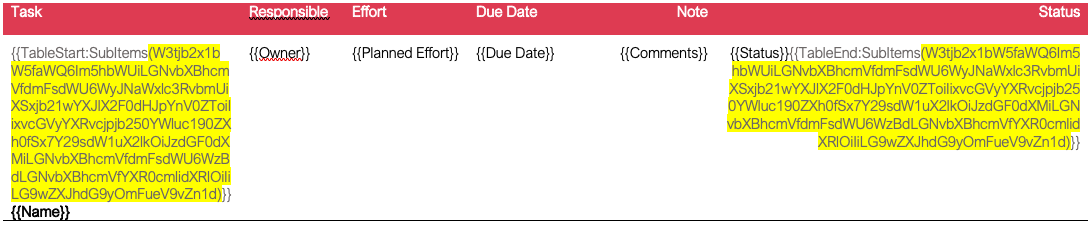
In this case, the filter needs to be included in the **`{{TableStart:SubItems}}`** and **`{{TableEnd:SubItems}}`** placeholders within brackets:
`{{TableStart:SubItems`**`(Filter string)`**`}}`
`{{TableEnd:SubItems`**`(Filter string)`**`}}`
In your template, it would look something like this (highlighted in yellow):
#### Combination of both SubItem and Item Level Filter
In this case, both the item level and the SubItem filter needs to be included in the document.
In your template, it would look something like this (Item level filter highlighted in red, SubItem filter highlighted in yellow):
**Note:** this feature is an advanced feature and you just need it in specific use cases. If you have any questions, please reach out to our [support team](https://www.docexport.com/contact).
{% hint style="warning" %}
**Note:** Filtering and sorting by ***Mirror***** or *****Formula*** columns is currently not available.\
This is due to limitations in the monday.com API, which does not provide the required data for these column types.
{% endhint %}


.png?alt=media&token=d81800b0-0b62-414f-8585-9d760358ba0f)